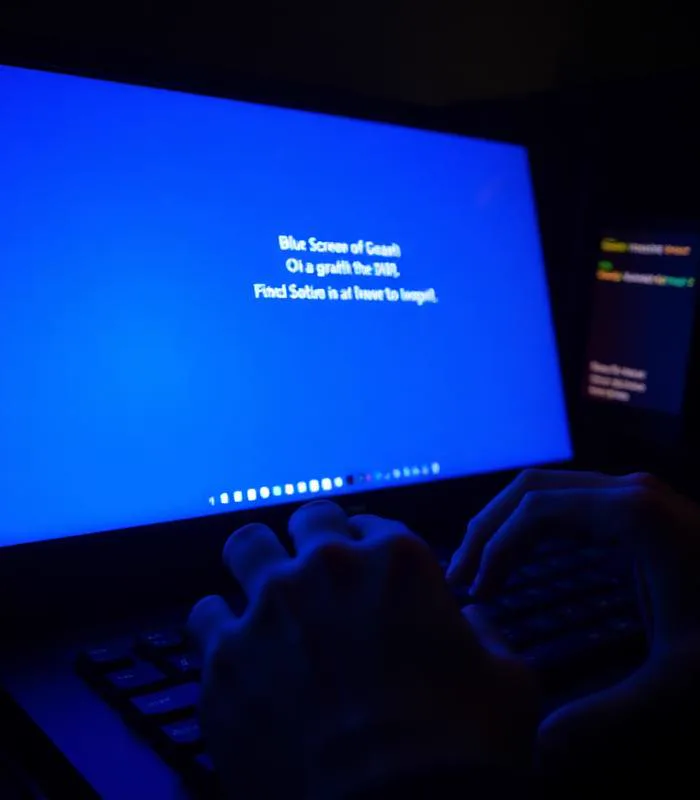

A sudden blue screen with a sad-face emoticon can feel alarming, especially mid-work with an unsaved document open. The good news: a Blue Screen of Death (BSOD) is actually Windows protecting itself — it's an emergency stop triggered the moment the system detects an error it cannot safely recover from while running. It is rarely permanent damage on its own, and in most cases it points clearly to one identifiable cause. This guide shows you how to read what your laptop is telling you, and the exact steps to fix the most common causes.
First, Read the Stop Code — Don't Skip This
Every BSOD shows a short all-caps error name, usually below the sad face or a QR code, such as MEMORY_MANAGEMENT or IRQL_NOT_LESS_OR_EQUAL. This single line tells you far more than "it crashed" — it's the difference between a two-minute fix and a drive that needs replacing. If the screen disappears too fast to read, open Event Viewer (search for it in the Start menu) → Windows Logs → System, and look for a red "Error" entry around the time of the crash — the stop code will be listed there too.
General Fixes That Resolve Most BSODs
Try these in order. Most crash loops are resolved by the first three steps alone.
1. Undo whatever changed recently
BSODs very often start right after installing a new app, a Windows update, or a driver. If you can recall what changed in the last few days, uninstall it, or use System Restore (search "Create a restore point" → System Restore) to roll back to before the crashes began.
2. Update — or roll back — your graphics driver
Graphics drivers cause a large share of BSODs, especially VIDEO_TDR_FAILURE. Go to Settings → Windows Update → Advanced options → Optional updates to get the latest driver. If crashes started right after a driver update, instead go to Device Manager → Display adapters → right-click your GPU → Properties → Driver → Roll Back Driver.
3. Boot into Safe Mode to confirm the cause
Hold Shift while clicking Restart, then choose Troubleshoot → Advanced options → Startup Settings → Restart, and press 4 for Safe Mode. If the laptop runs fine in Safe Mode, the cause is almost certainly a driver or a startup app, not a hardware fault.
4. Run Windows Memory Diagnostic
Search "Windows Memory Diagnostic" in the Start menu and choose "Restart now and check for problems." This tests your RAM directly and will flag MEMORY_MANAGEMENT-type faults caused by failing memory.
5. Check the disk for errors
Open Command Prompt as Administrator and run chkdsk /f /r, then restart when prompted (it runs before Windows loads). This catches disk-related crashes, including PAGE_FAULT_IN_NONPAGED_AREA.
6. Make sure Windows itself is fully updated
Go to Settings → Windows Update and install everything pending, including optional updates — Microsoft regularly patches known BSOD-causing bugs.
7. Remove recently added hardware
A new external SSD, RAM stick, docking station or even a USB device can trigger a BSOD if it's faulty or incompatible. Disconnect anything added recently and see if the crashes stop.
Common Stop Codes — What They Usually Mean
| Stop code | Usually points to | First thing to try |
|---|---|---|
| IRQL_NOT_LESS_OR_EQUAL | A driver (often network or graphics) accessing memory incorrectly | Update or roll back the most recently changed driver |
| MEMORY_MANAGEMENT | Faulty RAM or a driver mismanaging memory | Run Windows Memory Diagnostic |
| KERNEL_SECURITY_CHECK_FAILURE | Corrupted system files or a bad driver update | Run sfc /scannow in an Administrator Command Prompt |
| CRITICAL_PROCESS_DIED | A core Windows process was stopped, often by a failed update | Boot into Safe Mode and uninstall the latest Windows update |
| PAGE_FAULT_IN_NONPAGED_AREA | A failing or corrupted section of the drive | Run chkdsk /f /r, then back up your data as a precaution |
| DPC_WATCHDOG_VIOLATION | An outdated storage or chipset driver | Update storage/AHCI and chipset drivers from the manufacturer's site |
| VIDEO_TDR_FAILURE | The graphics driver stopped responding and was reset | Reinstall the graphics driver using a clean installation option |
| WHEA_UNCORRECTABLE_ERROR | A hardware fault — often CPU, RAM or motherboard-level | Stop overclocking if applied; if it persists, this needs a hardware diagnostic |
When a BSOD Means Hardware, Not Software
A single BSOD after a bad update is usually nothing to worry about once fixed. But some patterns are a clear signal of a physical fault rather than something you can permanently fix with software:
- The exact same stop code repeats even after driver updates and a clean Safe Mode boot.
- Crashes happen only under load — gaming, video editing, or many browser tabs — which often points to RAM, power delivery or overheating.
- You see WHEA_UNCORRECTABLE_ERROR, or increasing crash frequency over a few weeks.
- chkdsk repeatedly reports and "fixes" errors that come back on the next scan — a sign the drive itself is physically failing.
Back up your data before further troubleshooting
If BSODs are frequent, or if you suspect a failing drive, copy your important files to an external drive or cloud storage now, before attempting more fixes. Repeated crashes from a failing drive can progress to a laptop that won't boot at all, and diagnosing that stage without data loss is far harder.